Profile Settings
Manage your account, profile photo, password, payments, and purchase history from a single Account page.
01 / Overview
What the Account Page Is
The Account page is the single hub for everything tied to your BeeGraphy identity - your public profile, sign-in security, payment links, and a record of every model you've bought. It's split into three tabs so each concern stays self-contained.
Profile Settings. Display name, username, photo, bio, password, and payments.
Sign-in History. Every recent active session with time, browser, and location.
Purchases. All past orders, with downloads and invoices kept on hand.
02 / Access
Accessing Settings
Open the settings page by clicking the Account button in the top-right menu to customize your profile. To sign out of BeeGraphy, use the Logout button from the same menu.

03 / Personal
Personal Page Settings
These details make up your public BeeGraphy profile. Edit any of the open fields and confirm with Save Changes.
Display Name. Editable. The name shown on your profile and on every model you publish.
Username. Editable. Used in your profile URL and for mentions across the platform.
Bio & Social Links. Editable. A short description and external profile links so visitors can follow your work elsewhere.
Email. Fixed. The address you signed up with cannot be changed on an existing account.
Email change. BeeGraphy does not support changing the email tied to an existing account. To use a different address, register a new account or contact support to request deletion of the current one.

04 / Password
Changing Your Password
Update your password from the Profile Settings panel in three fields.
- Current password. Enter your existing password in the Current Password field.
- New password. Type the new one in New Password, then retype it in Confirm Password.
- Apply. Click Change Password to save the change.
05 / Photo
Profile Photo
Upload, replace, or remove the picture on your profile.
Uploading. Click Upload and select the image file in the pop-up window to set a new profile picture. To replace an existing photo, upload again - the new image overwrites the previous one.
Removing. Click Remove to clear the photo. A confirmation dialog appears first - click Remove Photo to confirm the deletion or Cancel to keep the current picture.
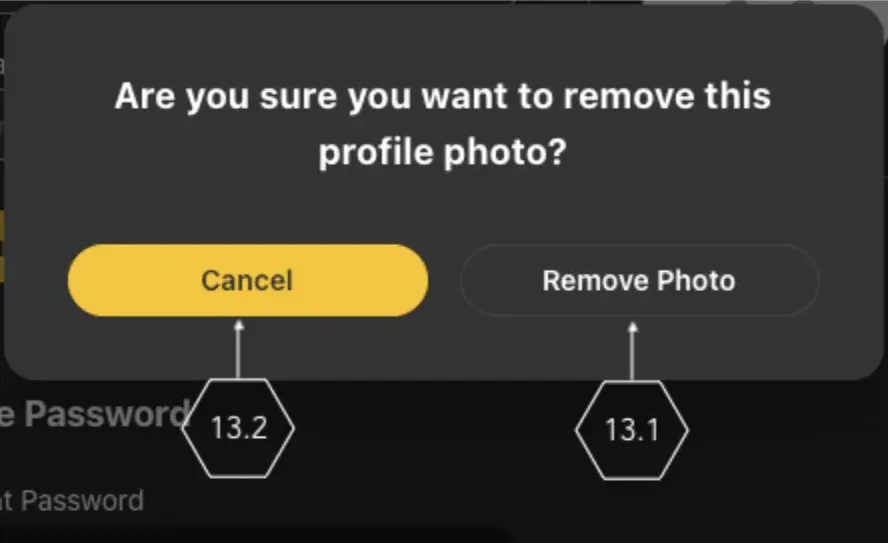
Removing the profile photo

Saving profile changes
06 / Payments
Linking a Payment Account
Connect a payment provider so you can buy and sell models on BeeGraphy. From the Profile Settings panel, click Sign Up for PayPal in the Customer Account area. You'll be redirected to PayPal to enter the email tied to your PayPal account and finish the link.
07 / Sign-in
Sign-in History
The Sign-in History tab lists every recent active session so you can spot unfamiliar activity. Each entry shows the login time, browser, and location of that session.

08 / Purchases
Purchase History
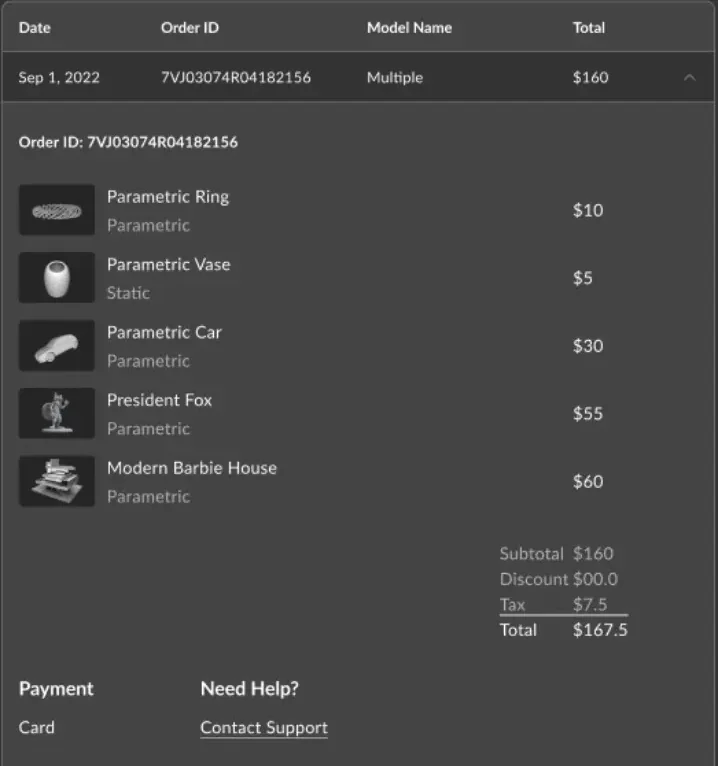
Open the Purchases tab to see a complete log of every model you've bought. Each entry exposes the original download and an invoice, so you can re-download a file or pull receipts later without contacting support.
09 / Delete
Deleting Your Account
BeeGraphy doesn't expose a self-serve delete button - account removal is handled by the support team. Reach out to support and request deletion of your account; they'll verify the request and process it from their end.
Learn More
Updating Profile Details
Help Center walkthrough for editing name, username, photo, bio, and links
→
Sign-in & Account Security
Monitoring sessions and protecting your account from unauthorized access
→
Customer Account for Payments
Linking PayPal for purchases and sales
→
Finding Your Purchases
Locating downloads and invoices in your purchase history
→